Your App Store page
updates itself every release.

Change your UI, drop in the new captures, and your finished store images update. Nothing else moves.

See how it works Coming soon for Mac

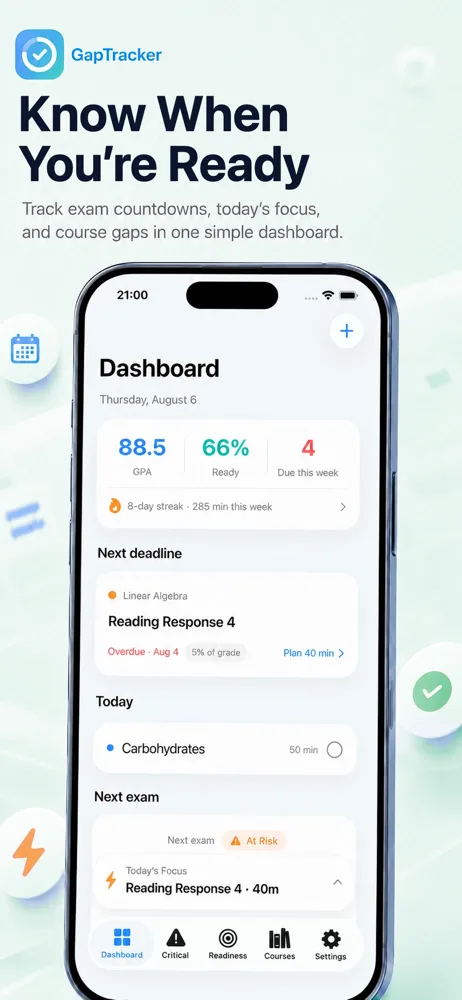
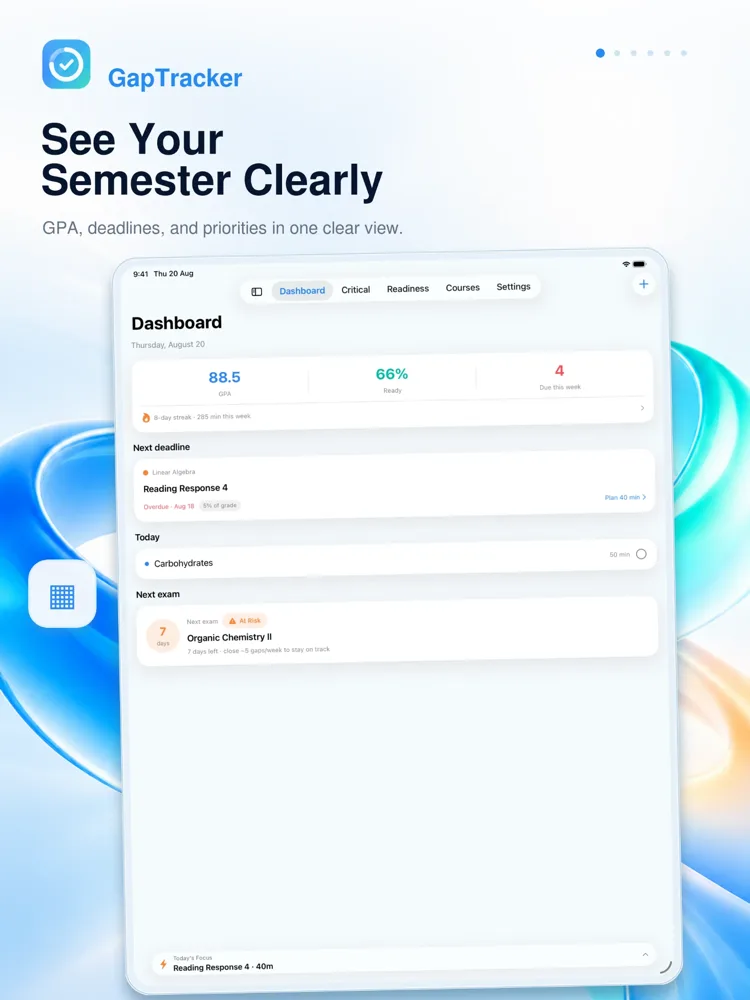
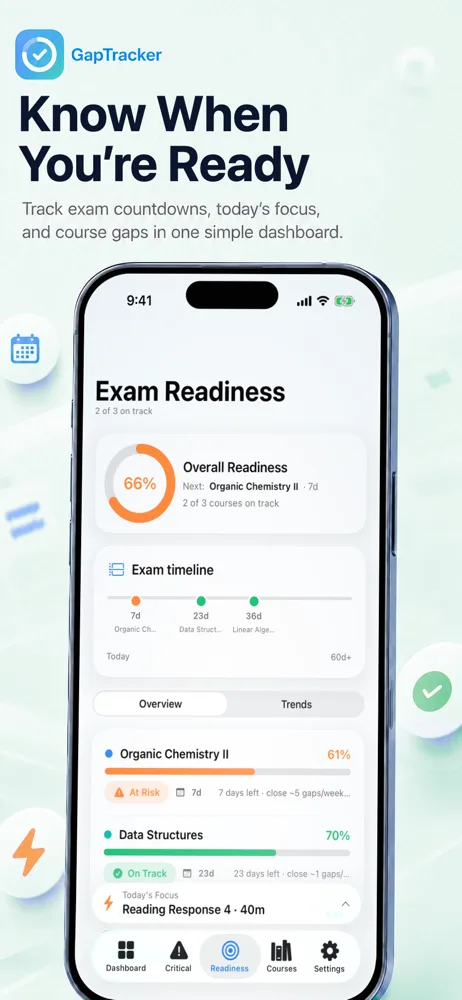
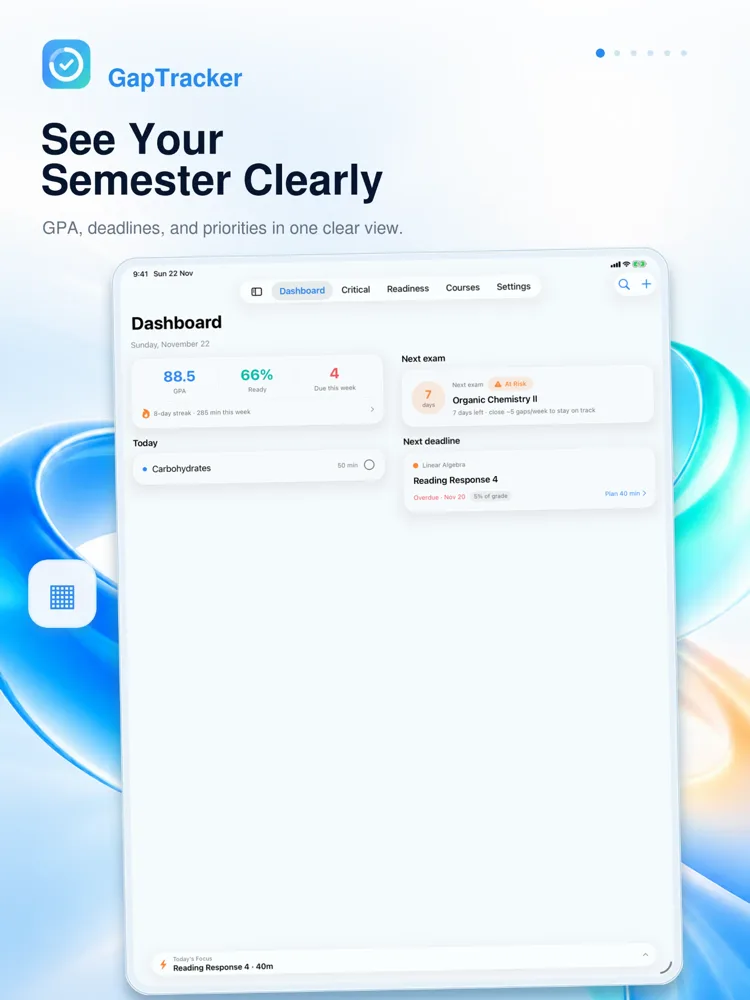
A store image for the app GapTracker before the update: the headline “See Your Semester Clearly” above a phone that shows the dashboard for Thursday, August 6. A second store image before the update: the headline “Close Your Critical Gaps” above a phone that still shows the dashboard. A third store image before the update: the headline “Know When You’re Ready” above a phone that still shows the dashboard. A store image for iPad before the update: the headline “See Your Semester Clearly” above a tilted tablet that shows the dashboard in one column.
The same store image after the update: the same headline, background and phone, with the dashboard now for Sunday, November 22. The same image after the update: the same headline and phone, now with the list of critical gaps on the screen. The same image after the update: the phone now shows the exam readiness screen. The same image after the update: the tilted tablet now shows the dashboard in two columns.

Store images made for the app GapTracker. Refreshot made After from Before and four new captures, and changed only the screens. Drag the handle to compare.

Every release multiplies the work.

Nobody redoes that by hand, so store pages go stale.

1 release times 5 to 10 screenshots times 2 to 3 device sizes times up to 40 languages

Refreshot keeps the images you already finished and changes one thing in them: the screen.

How it works

One release in three steps. Choose a step to see it in the app.

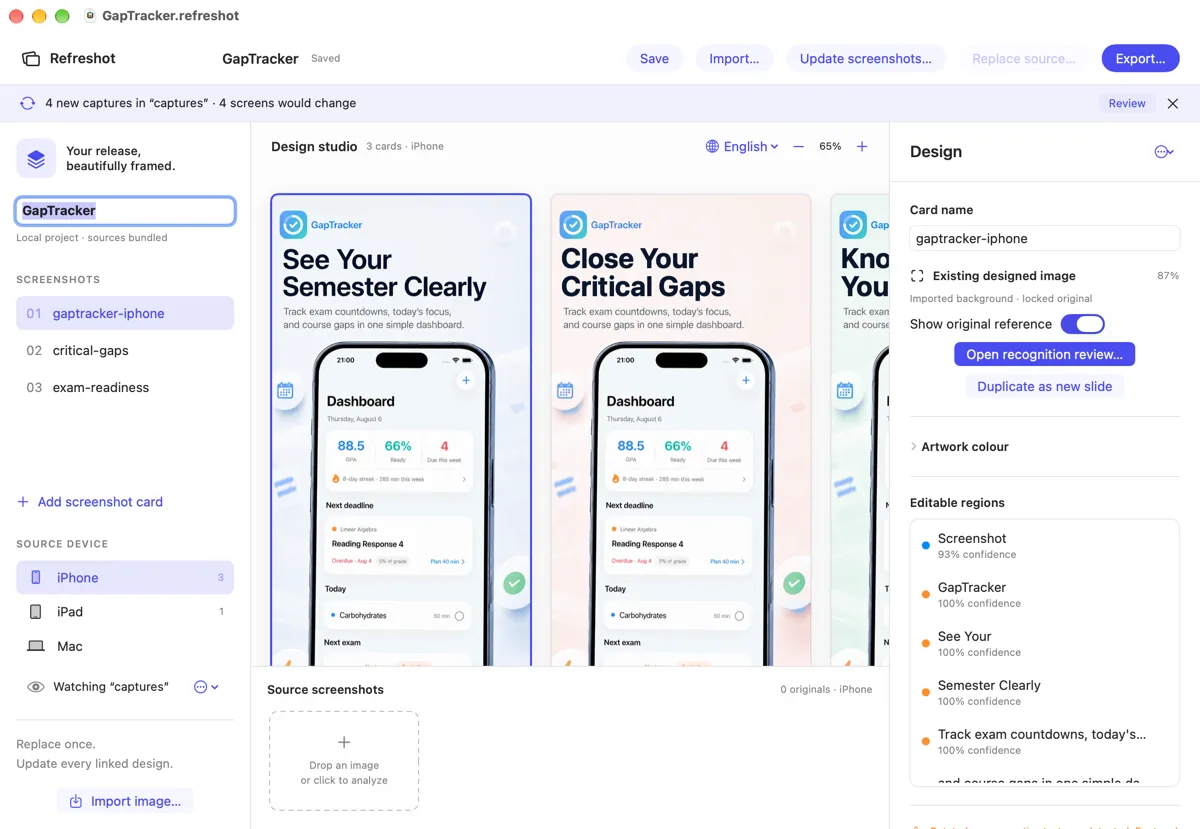
  1. Open the store image you already have: PNG, JPEG, WebP or HEIC. Refreshot measures the screen inside the mock-up, even when the device is tilted, in perspective, or cropped by the edge of the artwork. You confirm what it found.

    The Refreshot window with the project GapTracker open. Its finished store images stand side by side. A panel on the right lists what Refreshot found in the selected image: the screenshot, at 93% confidence, and each line of text. A banner says that 4 new captures would change 4 screens.
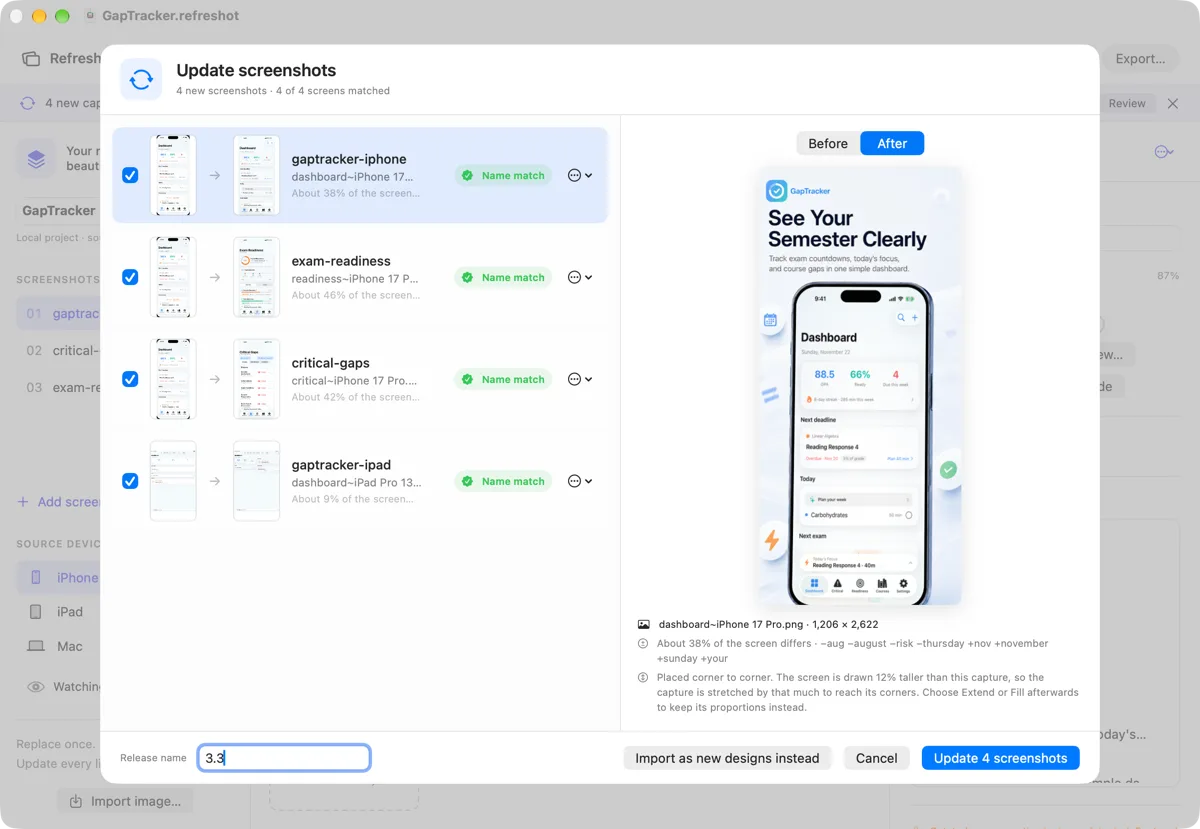
  2. Drop this release’s screenshots, or a folder of them, onto the project. Each capture is matched to the design that shows the same screen. You review the pairs, then update them all in one step that a single Undo reverts.

    The Update Screenshots sheet. Four new captures are each matched by name to the design that shows the same screen, next to a before and after preview and a button that reads Update 4 screenshots.
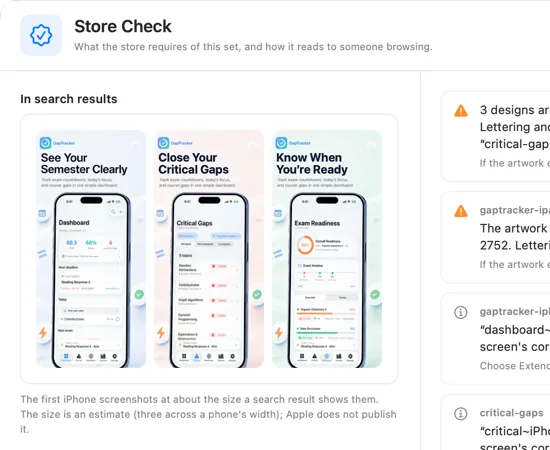
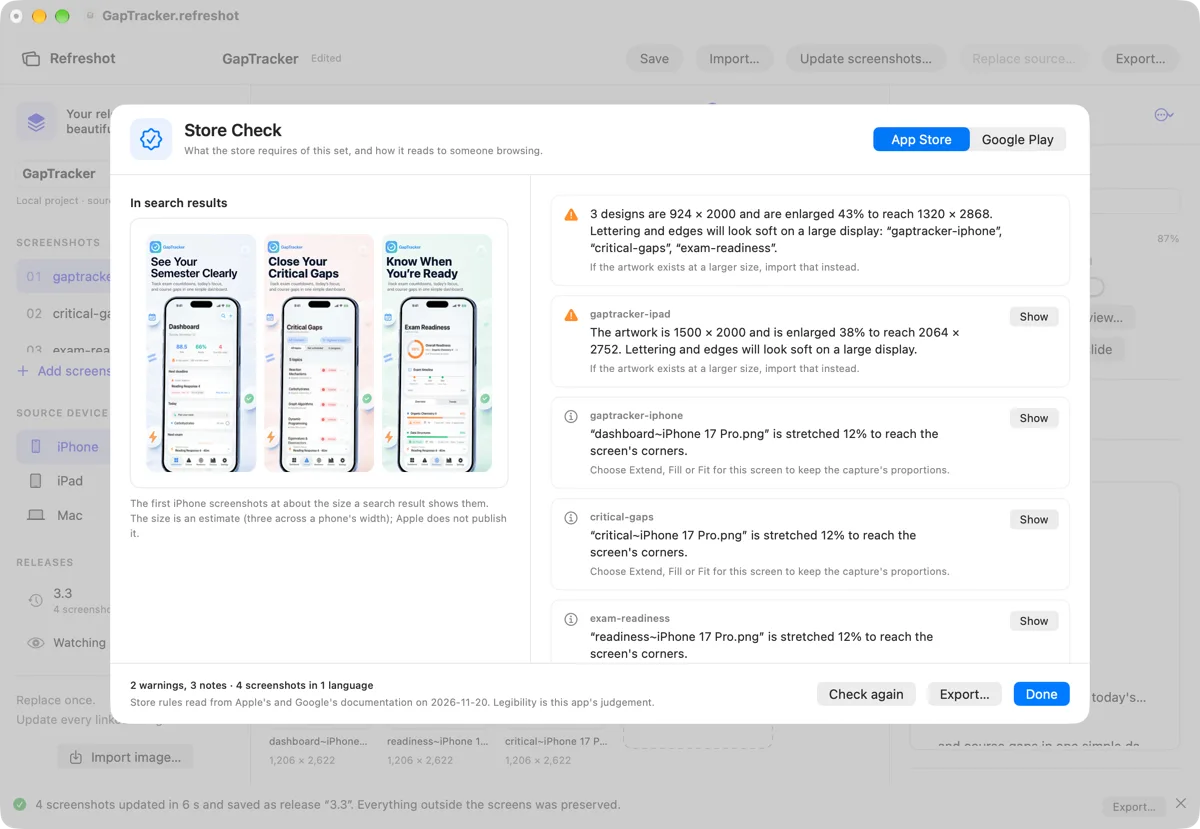
  3. Store Check reviews the set against what the stores require and shows how it reads at search size. Then export PNGs at each design’s own size, or at the sizes the App Store and Google Play accept.

    The Store Check sheet. On the left, the first three screenshots at about the size of a search result. On the right, two warnings and three notes about this set.

What it does

A store image for iPad before the update: the headline “See Your Semester Clearly” above a tilted tablet that shows the dashboard in one column.
Before
The same image after the update: the tilted tablet now shows the dashboard in two columns.
After

An exact fit on tilted and cropped devices

The new screenshot’s four corners land on the old screen’s four corners, through the same perspective. The display’s rounded corners are measured and masked, so the bezel is never painted over. When the artwork crops the device, the hidden edge is rebuilt from the side lines that are visible.
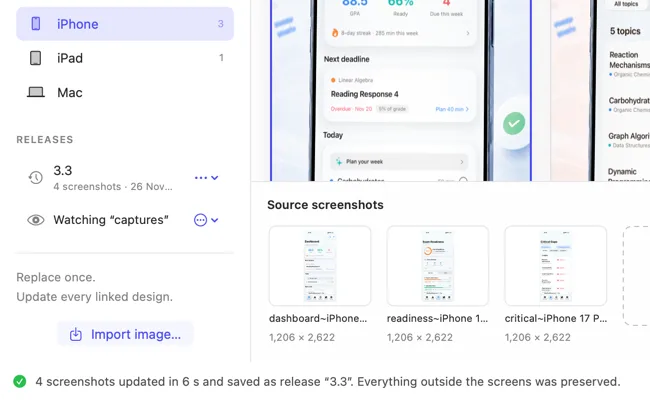
The lower left corner of the Refreshot window after an update. Under Releases the list shows release 3.3 with 4 screenshots. The status line reads: 4 screenshots updated in 6 s and saved as release “3.3”. Everything outside the screens was preserved.

A whole release at once

Drop a folder of captures and each one finds its design: by name, by look, by the words on screen and by layout. Every pair says what changed, for example “1% of the screen changed”, and a different clock in the status bar does not count. The last five releases are kept with the project, so an earlier one can be restored.

A close view of the top of a swapped screen. The clock reads 9:41, the camera cut-out sits on top of the new capture, and both rounded corners follow the phone’s frame.

A swap that looks untouched

Finished artwork often tones, shades or softens its screenshot. Refreshot measures that treatment from the artwork and gives it to the new capture. A badge or a hand that reaches over the screen stays on top. A capture that is a little taller or shorter than the mock-up’s screen is placed corner to corner, slightly stretched, and the app says by how much. Where a capture has open room, its plain background grows or shrinks instead, and everything your app drew keeps its size.

The store image in German. Its headline reads “Dein Semester klar im Blick”, and the app’s screen is in German too. The same image in French. Its headline reads “Voir clairement votre semestre”. The same image in Spanish. Its headline reads “Ve tu semestre claramente”.

Every language from one design

A language holds only what differs: its words and its captures. Layout, typeface, colours and artwork come from the design, so a change to the design reaches every language. Translate on the Mac itself for a first draft, or exchange the texts as a CSV or an Xcode String Catalog.

A video of a screen recording

Export a screen recording playing inside the design’s device, over the untouched artwork, through the same fit, look and perspective as a still. The result is an H.264 .mp4 without sound, for social posts and landing pages.

The upper left corner of the Store Check sheet. Under “In search results”, the first three screenshots stand side by side at about the size a search result shows them.

Store Check, before you export

The set is checked against what the stores’ own pages require: how many screenshots, which sizes, which shapes. Your first screenshots are shown at about the size a search result shows them. Headlines too small to read there, weak contrast, missing translations and status bar clocks that disagree are pointed out. It changes nothing.

$ refreshot check GapTracker.refreshot captures/
  ✗ stale      gaptracker-iphone  ← dashboard~iPhone 17 Pro.png  (name match)
  ✗ stale      exam-readiness     ← readiness~iPhone 17 Pro.png  (name match)
  ✗ stale      critical-gaps      ← critical~iPhone 17 Pro.png  (name match)
  ✗ stale      gaptracker-ipad    ← dashboard~iPad Pro 13-inch (M5).png  (name match)
4 of 4 store screenshots no longer match the app. Update with: refreshot sync GapTracker.refreshot <captures>
$ echo $?
2
Real output, shortened: the end of each line, which says what changed on that screen, is cut.

From the command line and CI

refreshot shares the app’s own code, so a release made in a terminal or in CI is the release the app would have made. refreshot check changes nothing and answers one question: do the store screenshots still show what the app looks like? It exits with code 2 when any screen is stale, so a CI job can fail a release whose store page was forgotten.

Your artwork stays on your Mac.

Privacy and security, in plain words.

Nothing is uploaded.
The images you import are not sent to a remote service.
No account.
There is nothing to sign up for and nothing to sign in to.
No analytics in the app.
The app does not report what you do with it.
No cookies on this site.
It has no advertising and no forms, and it measures visits only if you accept that.
It all happens on your Mac.
Reading images, recognising text, translating and exporting all run locally, with Apple’s own frameworks.
Your original is kept.
The untouched artwork you imported is stored inside every project, and you can always go back to it.
Apple handles payment.
Purchases go through the App Store. Apple handles identity, billing, refunds and restoring.
Projects stay readable.
Without a subscription, a project made with Pro still opens, edits, saves and exports.

Free and Pro

Free is useful on its own. Pro is for scale and repetition.

Free

No purchase needed.

  • Import and review a finished design
  • Replace one screen at a time, with the exact fit, Extend, and anything the artwork keeps on top
  • Edit its text
  • Export at any size
  • Store Check

Pro

A yearly or a monthly subscription, or a one-time purchase. Prices: shown in the App Store.

  • Update Screenshots for a whole release. The first one is free, so you can judge it on a real release.
  • The watched folder
  • Adding and translating languages
  • Duplicating a design as a new slide
  • Recolouring
  • Measuring the artwork’s look
  • Exporting a video

What Pro never does

It never makes a project unreadable. Without Pro, a project made with it still opens, edits, saves and exports: its languages still render, its looks still apply, an existing translation can still be corrected and a recolour removed. Only starting something new from the Pro list asks.

Nothing about a purchase is stored in a project, and there is no Refreshot account. Apple handles identity, billing, refunds and restoring.

Questions

Does my artwork leave my Mac?

No. Recognition, translation and export run on your Mac, with Apple’s own frameworks. The images you import are not sent to a remote service, and there is no account to sign in to.

What happens to my projects if I stop paying?

They keep working. A project made with Pro still opens, edits, saves and exports without it. Its languages still render and its looks still apply. Only starting something new from the Pro list asks for Pro.

Which image formats?

Import PNG, JPEG, WebP or HEIC, up to 256 MB a file, 32,768 pixels an edge and 100 megapixels. Exports are PNG without an alpha channel, which both stores require, up to 10,000 pixels an edge and 40 megapixels. A video export is an H.264 .mp4.

Do I need my design source files?

No. Refreshot works from the finished, flattened image: it measures the screen inside the mock-up and replaces only that. Text you do not edit keeps its original pixels. Recognition is a starting point, not a way to recover source files: it cannot bring back a designer’s exact font or pixels that were hidden.

Which macOS?

macOS 14 or later. Translating on the Mac itself needs macOS 26 or later with the language’s models installed. On earlier systems you can export the texts and import translations.